
KGM Mail makes it easy for clients to communicate directly with our civil engineers — sharing photos, voice messages, and project updates quickly and securely. When you enter the app, you will be shown the following main screen:
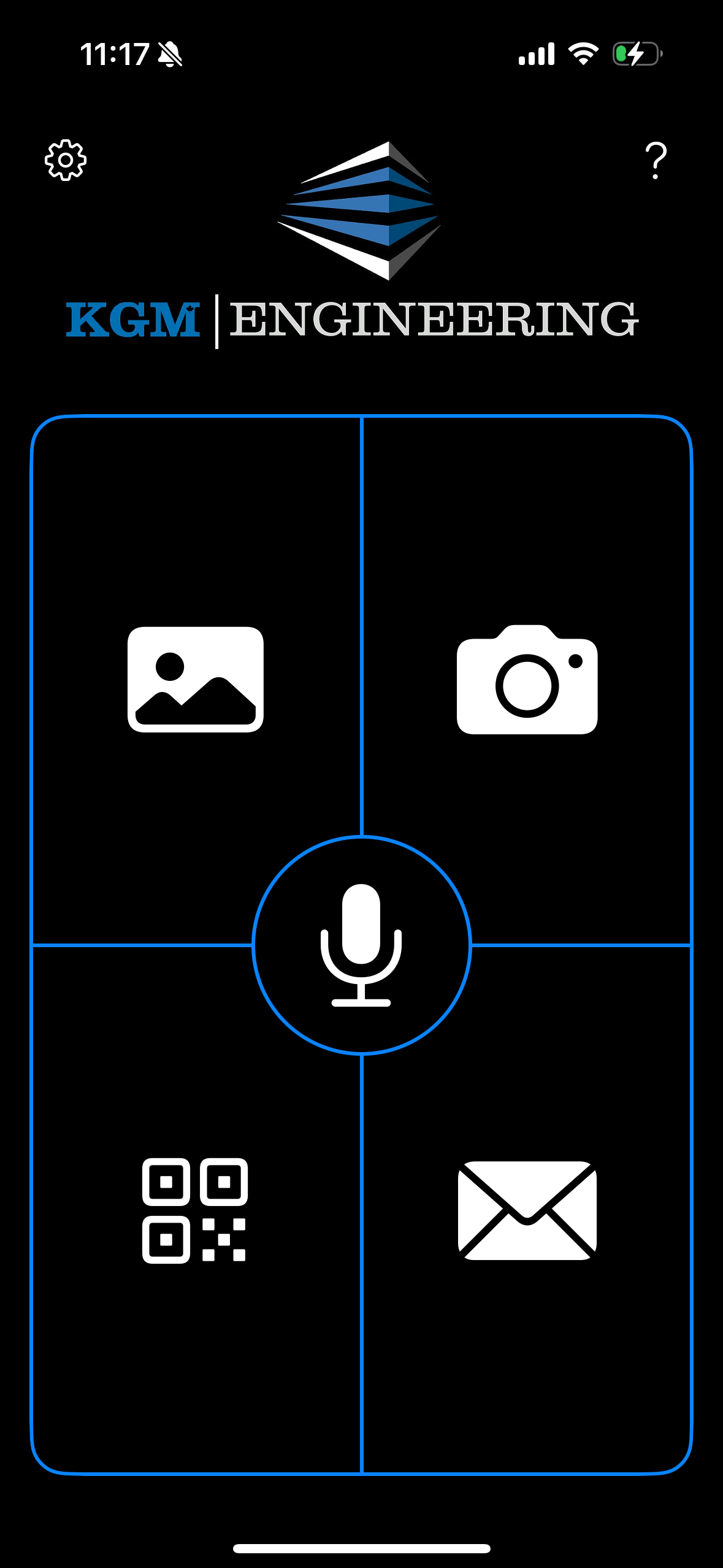
Click the gear icon in the top left to enter the Settings screen. Here, you can customize how the app will work for your needs:
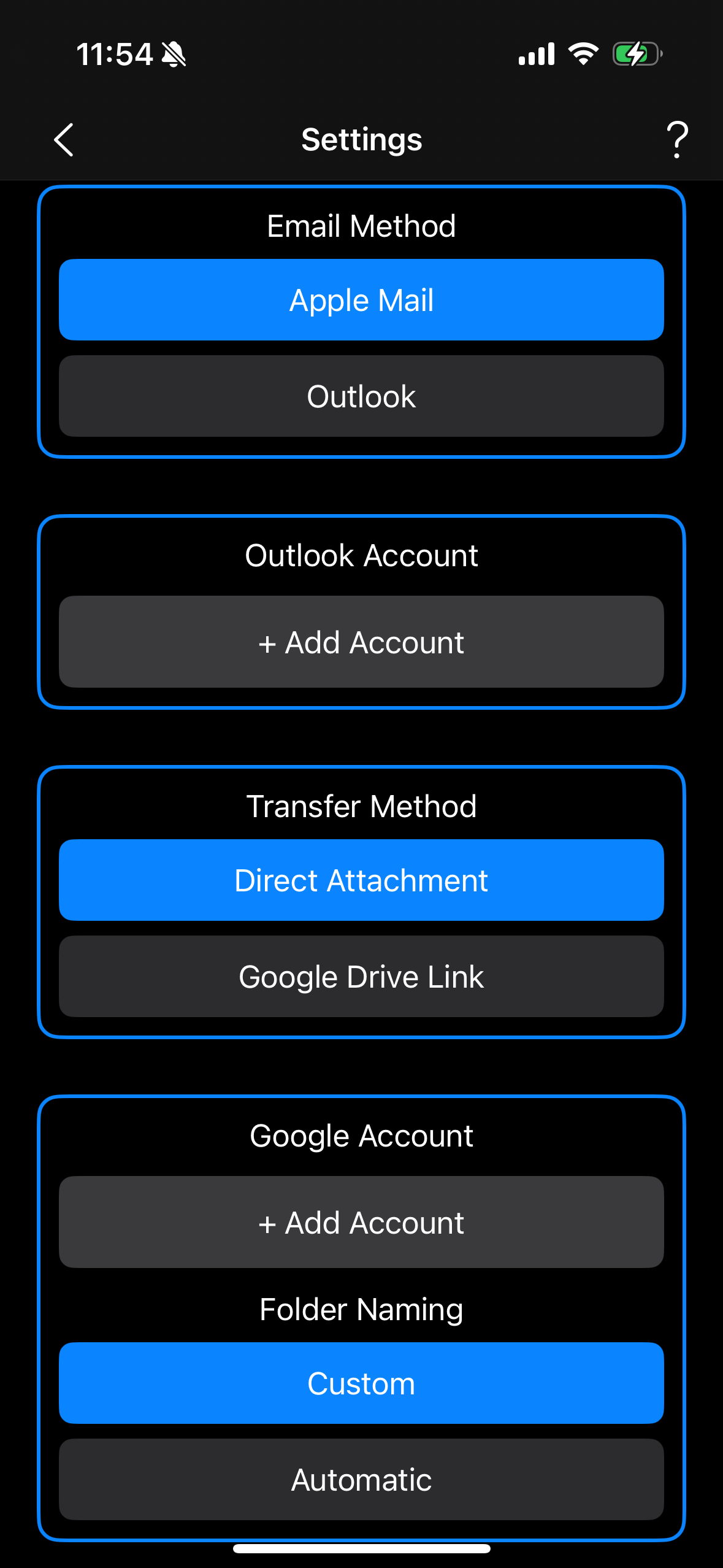
Here is an explanation of the most important settings on this screen:
Email Method: Select how you would like to send emails.
Transfer Method: Select how you would like photos or voice messages to be transferred.
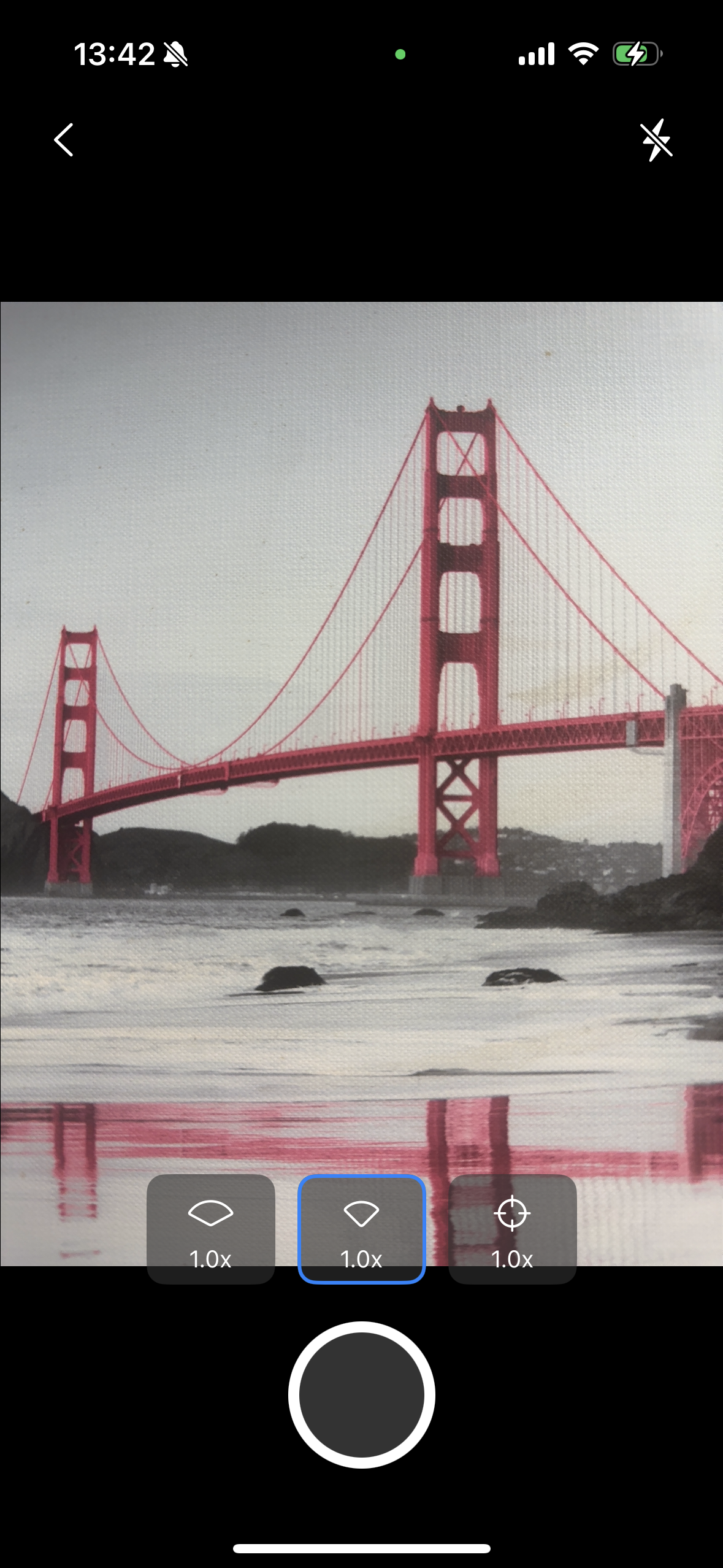
After configuring the app accordingly, return to the main screen and start creating photos and voice messages. If you just want to contact KGM Engineering without attaching any media, skip to the “Final Step”. Otherwise, you may take photos by clicking the Camera button:
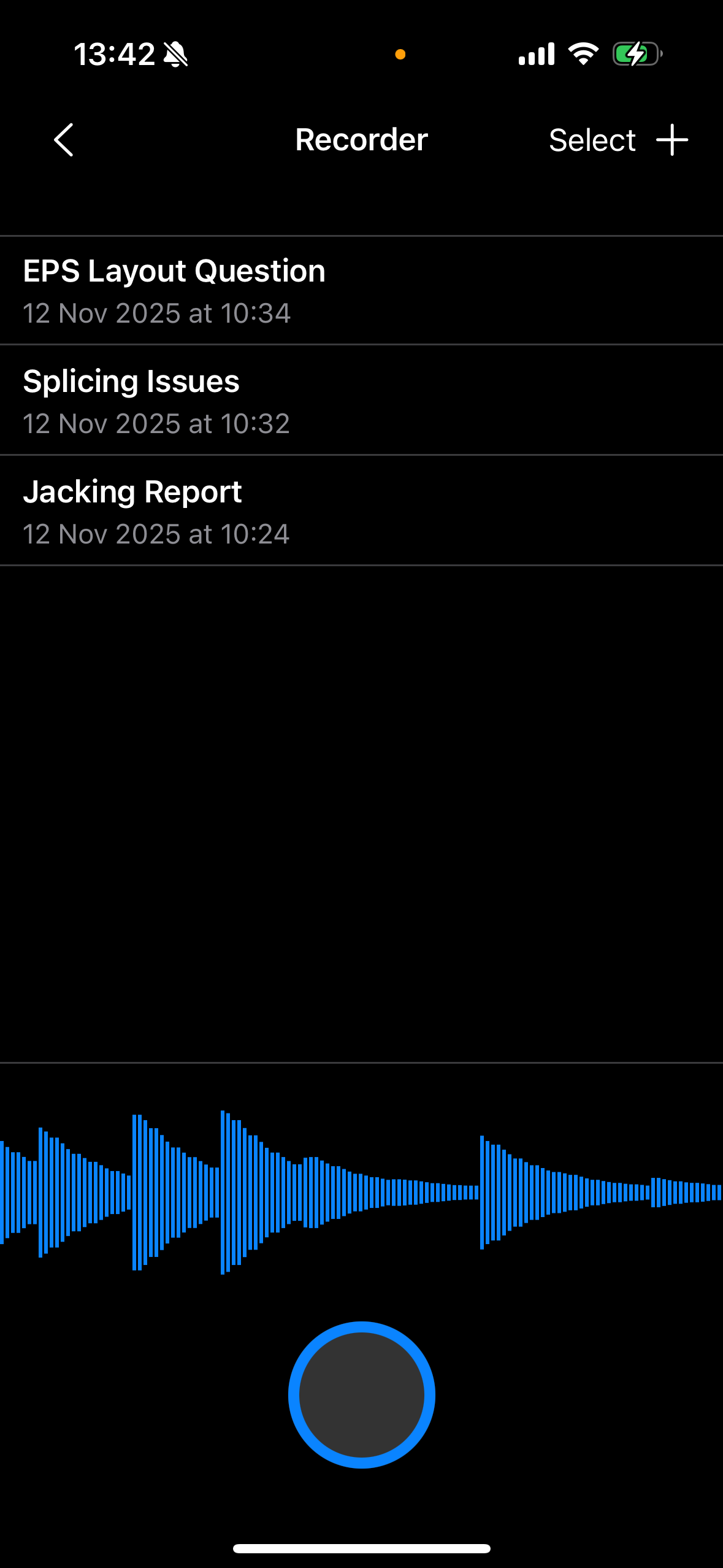
…or record voice messages by clicking the Microphone button:
After creating your media, you may select it to be attached to your email. You can select photos by clicking the Library button on the main screen:

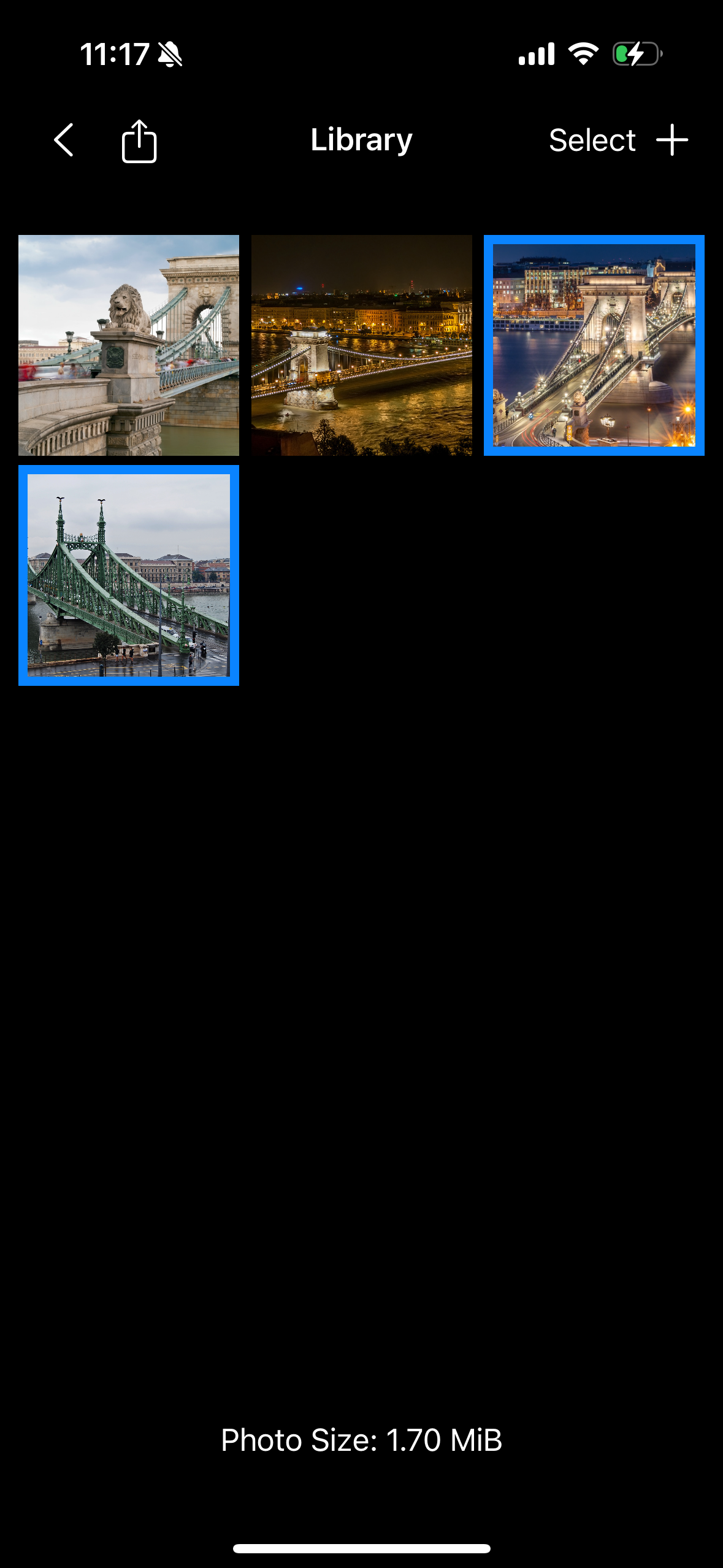
In this instance, I have four photos in my app of some bridges. This library is completely separate from my personal photo library. If you would like to import photos from your photo library, you can do so by clicking the “+” sign in the top right.
If you click a photo, you will be taken to a screen where you can view it in detail and assess its quality.
Select photos by clicking the Select button in the top right, then clicking on your photos. If you took some photos in the app and would like to copy them to your photo library, you can export your selection by clicking the Export button in the top left.
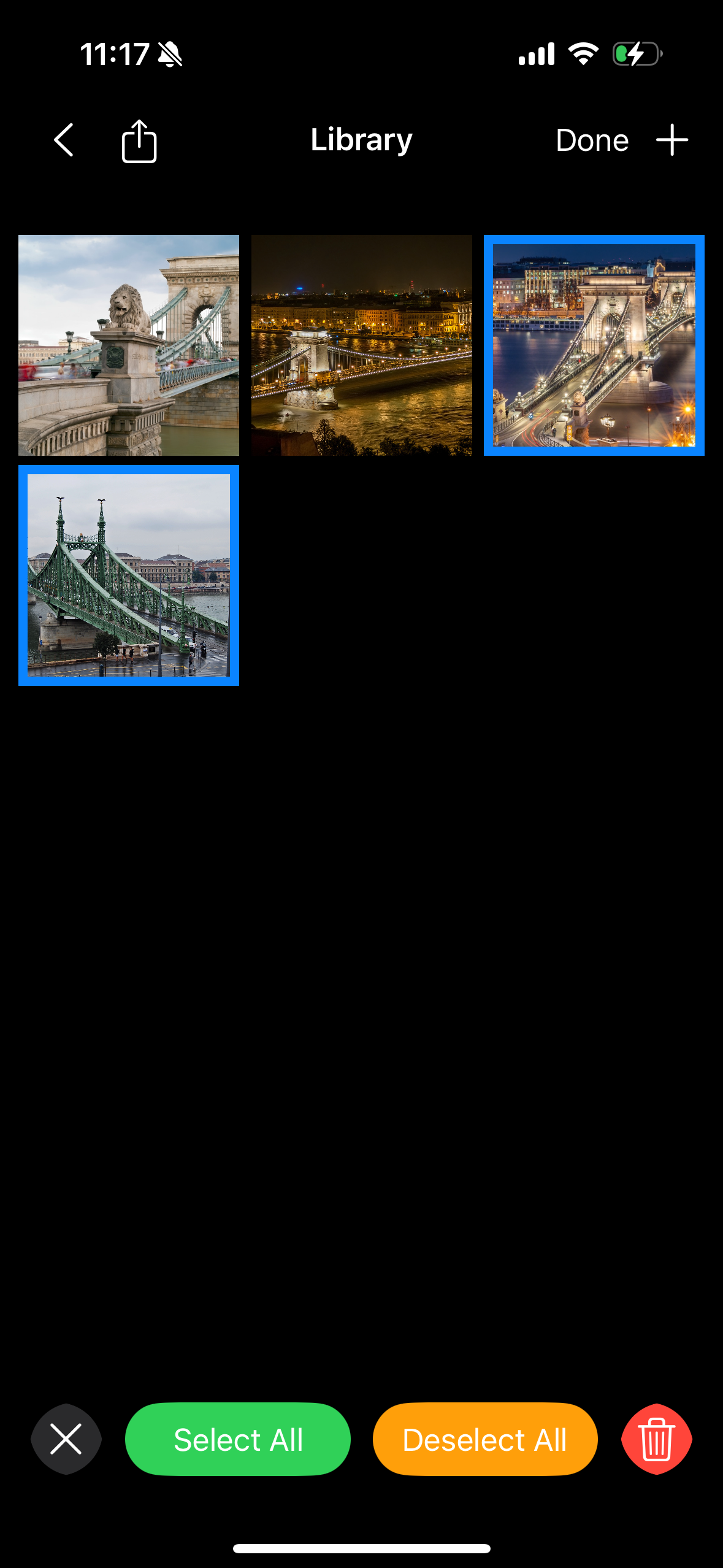
When you click the Done button in the top right, you will be able to see how large your photo selection is in MiB. When your Transfer Method is set to Direct Attachment, you will automatically be warned if your photo and voice message selection exceeds 20 MiB.
You can select voice messages by clicking the Microphone button on the main screen:
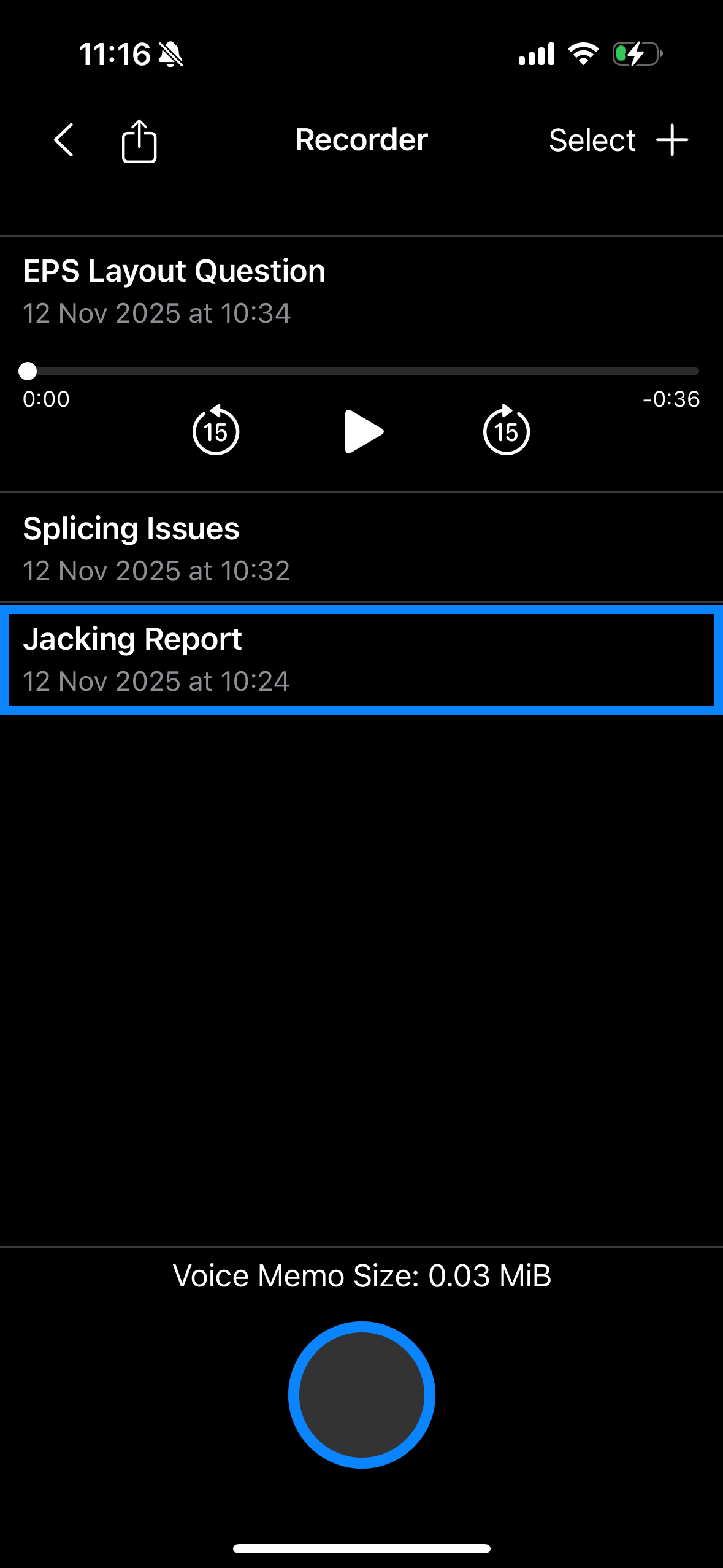
In this instance, I have three voice messages in my app. This library is completely separate from my personal Voice Memos library. If you would like to import recordings from Voice Memos, you can do so by clicking the “+” sign in the top right.
Exactly like the app’s photo library, you can export and select voice messages. If you would like to re-listen to a voice message, click on it and press the Play button. To rename a voice message, click on its title.
Once you are ready to send an email to KGM Engineering, scan a QR code on a KGM Engineering drawing by clicking the QR Code button on the main screen. Once scanned, you will be able to click the Email button, which will automatically compose your email.
If you have any questions or concerns about KGM Mail, please contact us at kgmapplications@gmail.com.